Why are we making changes?
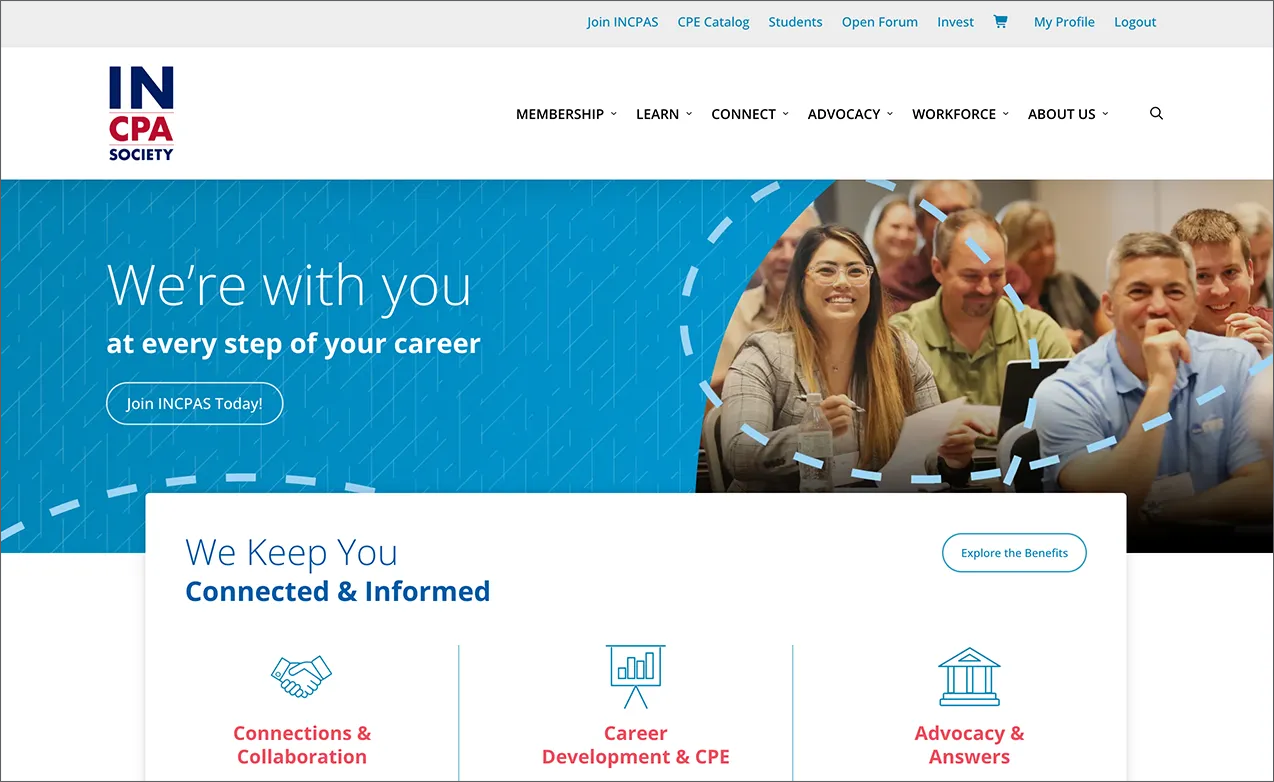
To make things easier for you — streamlined registration and renewal processes, more intuitive navigation and a reimagined member portal for a more personalized experience.
What’s new?
- Improved website navigation
- Access all CPE transcripts and track CAE credit received outside of INCPAS
- Redesigned CPE catalog
- New discount programs
- Additional payment options (you can now pay via ACH or credit card online)
How do I log in and reset my password?
You’ll need to log in with the email you used prior and then reset your password. More information will be shared on January 28 when we launch.
Can I change my email address in the portal?
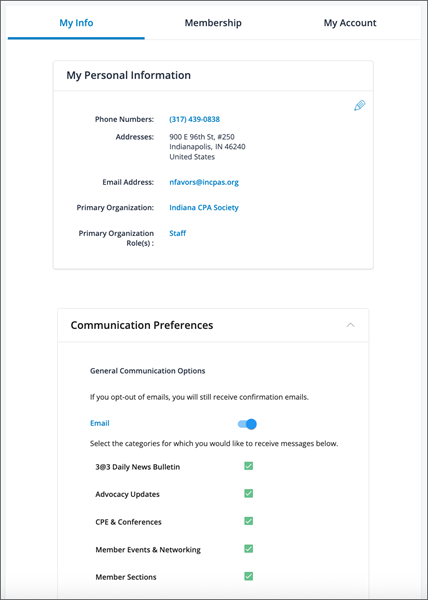
Yes! You will first need to reset your password and log in using your prior email address. Then you can change your login name to a new email address: Click the profile icon at the top right, then click My Profile. My Info should be highlighted in blue. Under the My Personal Information header, click on the pencil icon. Locate the information you want to update. Then scroll to the bottom and click the Update button.
Here is where you edit your email address once you are logged in to the portal:

Will I have different passwords for the INCPAS website and open forum?
No. You’ll use the same login for both your INCPAS account and the open forum, making it easier to access everything in one place.
How do I update communication preferences?
Log in to the new portal and click the profile icon at the top right. Then click My Profile. My Info should be highlighted in blue. Click the Communication Preferences header. The dropdown menu will show all your communication options you can opt in/out of.
Here is where the communications preferences are located once you are in your profile:
Where is my CPE history and transcripts?
Your CPE history and transcripts can be found in your member portal. Click CPE History in the top menu. Then select View My Credit History from the drop down menu. Your CPE Credit History will display and you can choose to Download Transcript.
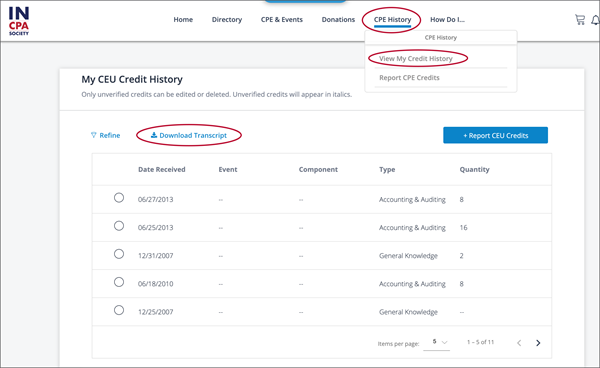
You’ll be able to report and track your CPE credits received outside of INCPAS so everything is in one place. Click on CPE History, then Report CPE Credits from the drop down menu. To add credits, click the blue button that says Report CEU Credits.

When will the new website launch?
January 28, 2026
What if I have a question?
Phone: (317) 726-5000
Toll-free: 1-800-272-2054
– or –
Use the Chat feature on incpas.org